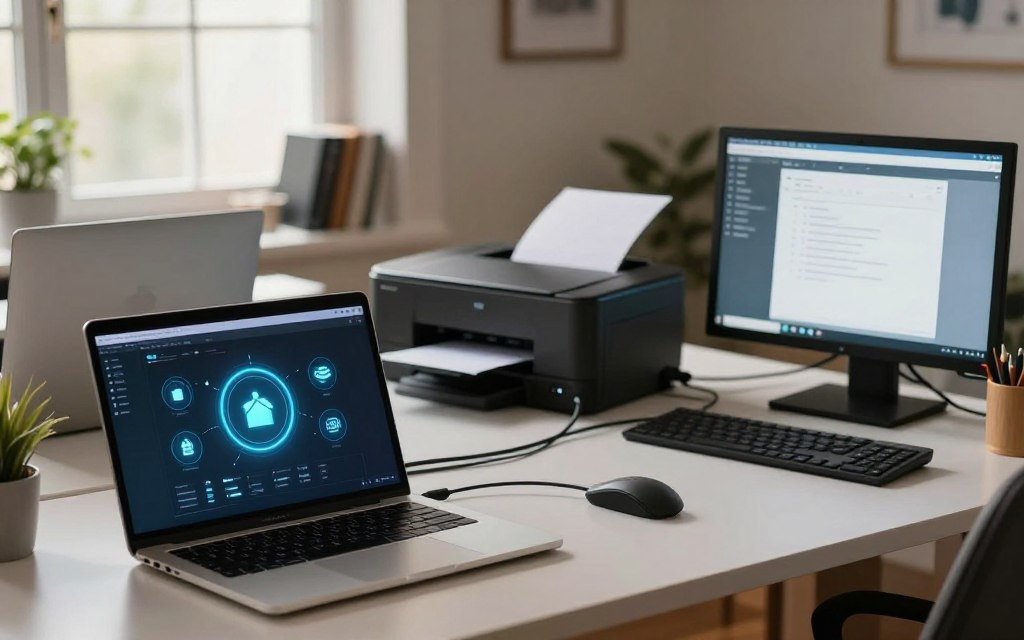

A person opening a coworker’s shared folder could use Network Neighborhood instead of typing a network address. This built-in Microsoft Windows feature helped you find shared computers and resources, such as folders and printers, on a local network.
SMB means Server Message Block, a network protocol Windows uses to share resources such as files and printers. The feature was useful when you needed to browse for another computer, but it was not a type of computer network or a separate internet browser.
Key Takeaways
- It helped Windows users find shared local resources.
- Shared folders and printers were common examples.
- It was not an internet browser or network type.
- Windows later changed the name and interface.
- Current Windows uses File Explorer’s Network location.
Its name changed across Windows releases, and current Windows offers a different place to browse shared resources.
What Is Network Neighborhood in Computer?
The feature first appeared under its original name in Windows 95 and Windows NT 4.0. Network Neighborhood gave users a browseable list of network resources.
Windows 2000 renamed the interface My Network Places, and Windows Vista replaced it with Network in File Explorer. The old browser was a way to browse resources, not a web browser.
Windows 2000 renamed the interface My Network Places, and Windows Vista replaced it with Network in File Explorer.
How the Name Changed Across Windows Versions
Windows 95 and Windows NT 4.0 used SMB network browsing to show a list of discoverable computers and resources. Windows 2000 and Windows XP displayed My Network Places, a renamed interface for shared resources.
The name My Network Places covered several navigation choices, not a new kind of network. People may still use the words network places when discussing those older Windows screens.
| Windows version | Displayed name | Discovery or access method | What the user sees |
|---|---|---|---|
| Windows 95 and Windows NT 4.0 | Network Neighborhood | SMB network browsing | Browseable list of network resources |
| Windows 2000 and Windows XP | My Network Places | Legacy network browsing | Renamed interface for shared resources |
| Windows Vista | Network | SMB, WS-Discovery, and UPnP | File Explorer node that lists network computers |
| Windows 10 and Windows 11 | Network | Current File Explorer location | Successor, not a My Network Places app |
What Replaced It in Windows 10 and 11?
In Windows 10 and Windows 11, open File Explorer and select Network. The Network Neighborhood icon and My Network Places app are not separate current Windows tools.
References to Network Neighborhood in Windows 10 or Network Neighborhood in Windows 11 usually mean the older feature or its current successor. Vista’s Network node could list network computers through SMB, WS-Discovery, and UPnP. Windows XP support ended in April 2014.
Those names explain what users saw; the next question is how the old list gathered its computers and resources.
How Did Network Neighborhood Find Shared Resources?
A shared folder appeared only if the computer hosting it could be discovered on the local network. SMB means Server Message Block, a network protocol Windows uses to share resources such as files and printers.
In a legacy workgroup, one master browser maintained the visible list of discoverable computers and shared resources. The list did not show every device on every network.
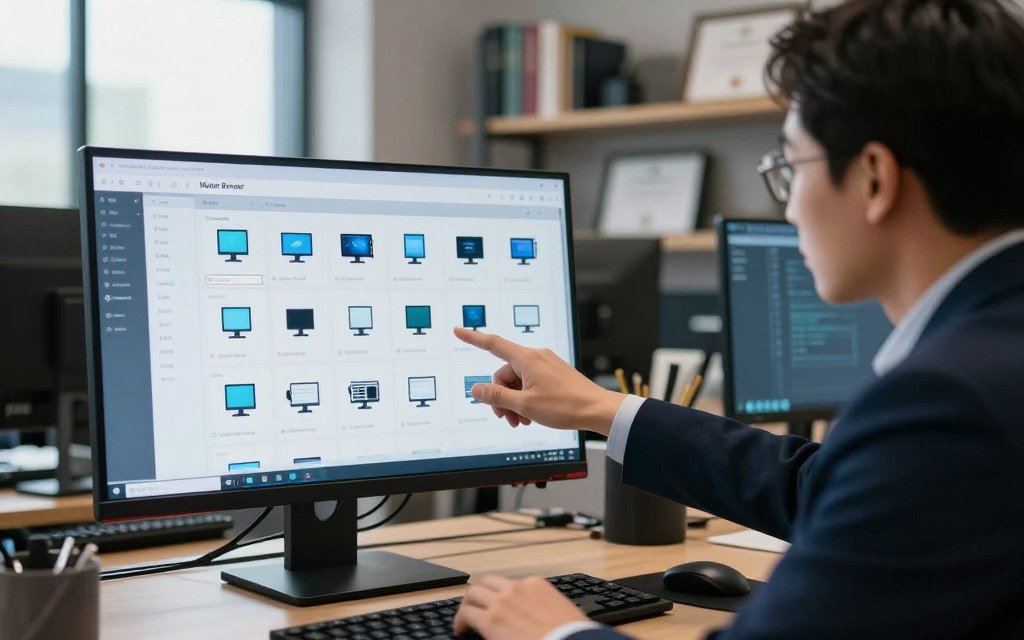
What a Computer Network Example Looks Like
A computer network example is a few computers in one workgroup, sharing folders or a printer over a local network. Network Neighborhood could enumerate computers on a local, non-routed network when they supported SMB and allowed discovery.
It focused on computers and shared resources, not every device a network could contain. A profile’s NetHood folder kept an automatically updated history of computers you had already accessed.
By default, NetHood sat in your user profile. NetHood registry entries under HKEY_CURRENT_USER\Software\Microsoft\Windows\CurrentVersion\Explorer\Shell Folders and HKEY_CURRENT_USER\Software\Microsoft\Windows\CurrentVersion\Explorer\User Shell Folders could change its location.
Which Types of Computer Network Can It Browse?
Four common types of computer network are PAN, LAN, MAN, and WAN. A LAN covers a local area, while the other types can cover wider areas.
IBM’s overview of network types explains how their scope differs. Neighborhood-style browsing focused on local network visibility rather than routed networks.
Workgroup size shaped the master browser setup. Windows NT 4.0, Windows 2000, and Windows XP used one master browser for up to 32 computers.
Windows 95, Windows 98, and Windows Me used one for up to 16 computers. Elections considered Windows version, time on the network, hostname, and other factors.
For NT 4.0, 2000, and XP workgroups of 33-64 computers, two backup master browsers were assigned. Workgroups with 65 or more added one backup for each further 32 computers.
For Windows 95, 98, and Me, workgroups of 17-32 computers got two backups. Larger groups added another backup for each further 16 computers.
Conflicts between master browsers could hide the list or make a system unreachable. Disabling the Browser service and rebooting could make a system decline master browser status.
A legacy security issue also affected some Windows XP systems. When XP tried to discover shares in a workgroup with an NT 4.0 computer, it could send the user’s local login password.
That exchange used weak LAN Manager authentication, which could expose credentials to network eavesdropping. This describes old Windows behavior, not current Windows behavior.
Because the old list could miss computers, current Windows discovery and basic connection checks are more useful for finding them.
How Do You Find Shared Devices in Windows 10 or 11?
On a current Windows PC, start in File Explorer’s Network location rather than looking for the old My Network Places window. Network is the current place to browse for visible computers and shared resources.
A missing entry does not by itself mean the network connection is broken. Check local connectivity and discovery before changing network settings.
A missing entry does not by itself mean the network connection is broken. Check local connectivity and discovery first.
Where Is the Network Icon in Windows 10 and 11?
Open File Explorer, then select Network in its navigation pane. My Network Places in Windows 10 and My Network Places in Windows 11 are not separate current apps.
The old Network Neighborhood icon opened an interface with several historical choices. Add Network Place launched a wizard for shortcuts to shared files, printers, and FTP sites.
Entire Network linked to computers on the network, while Microsoft Windows Network led to Windows Server domains and workgroups. Directory showed Active Directory information about users, groups, and computers on domain controllers.
Computers Near Me showed computers in the local domain or workgroup. Those labels explain old navigation, but they are not current File Explorer apps.
What to Check When a Computer Is Missing
Start with the local connection, then check whether Windows can discover and share resources. These checks help separate a missing browse-list entry from a connection fault:
- Confirm both computers use the intended local network.
- Check that network discovery and file sharing are enabled.
- Review firewall permissions for network discovery and sharing.
- Verify the workgroup name and TCP/IP address settings.
A firewall can block discovery, and different workgroup names or TCP/IP settings can also hide resources. If you need to identify a device, these ways to find a computer name on a network can help.
A missing browse-list entry can point to discovery trouble rather than a broken connection. Open Network and check discovery and sharing before changing broader settings.
Conclusion
The practical takeaway is to look for Network in File Explorer on a current Windows PC. Network Neighborhood and My Network Places are legacy names; Network is the current location for browsing shared resources.
A computer missing from that list does not prove your connection is down. Open Network and check discovery and sharing settings if the computer is not listed. If it still does not appear, check the local connection before changing other network settings.

 By
By

 By
By