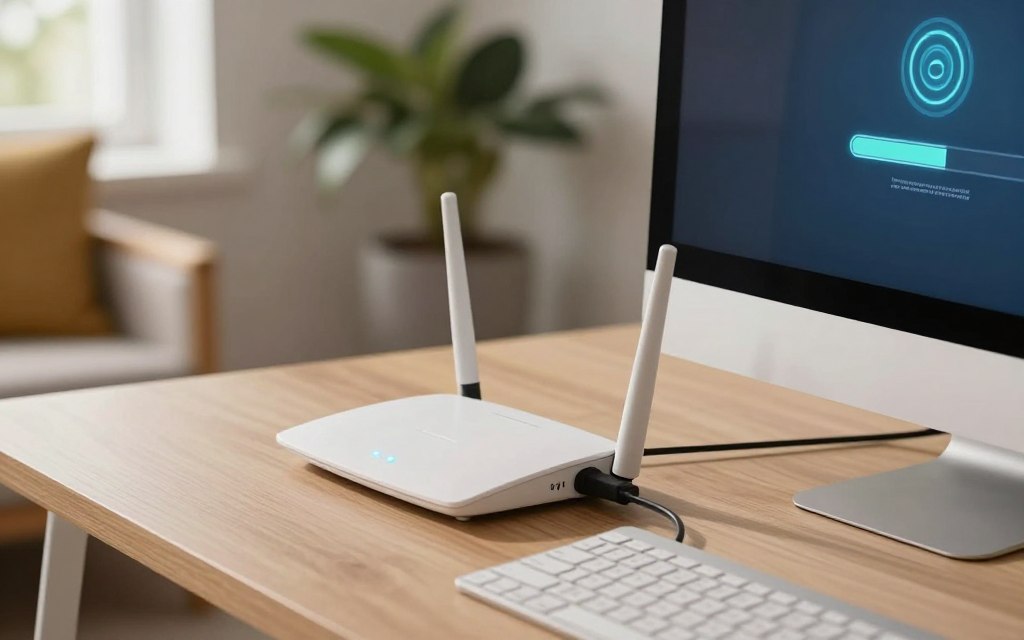

A computer joins a network through Wi-Fi or Ethernet, giving you a path to the internet or other devices. If you are learning how to connect in network computer setups at home, the key is knowing which kind of access you need. Internet access and file sharing are related, but they are separate tasks.
This guide covers Windows 10 and Windows 11, basic wired setup, local file sharing, and practical fixes. A home setup may use a modem and router as separate devices, or one combined unit. DHCP is a network service that automatically assigns a device configuration, including an IP address.
Key Takeaways
- Choose Wi-Fi or Ethernet based on location and connection needs.
- Internet access does not automatically give other computers access to your files.
- Both computers need the same local network for common file-sharing setups.
- Use sharing only on networks and folders you trust.
- Check internet access before setting up a shared folder.
First identify your connection method, then decide whether you need internet access, local sharing, or both.
Which Network Connection Should You Choose?
Wi-Fi gives you room to move, while Ethernet links a computer to the router with a cable. A phone hotspot can help when neither home option is available. Your location and the work you need to do should guide the choice.
A local area network connects devices in a limited area, allowing them to exchange data and share resources. A router lets several devices use one local network and share an internet connection. A modem links that home network to your internet service.
A router can share one local network and internet connection among several devices.
One router can serve several devices, but routers can also split traffic into separate network segments. Devices on different segments may not find each other or share files. A computer connected to a guest network may also be separated from devices on the main home network.
| Connection type | What you need | Mobility | Main limitation |
|---|---|---|---|
| Wi-Fi | Wireless router and Wi-Fi adapter | Works within signal range | Signal quality can affect performance |
| Ethernet | Network cable and Ethernet port or adapter | Computer stays physically tethered | Requires a cable run |
| Phone hotspot | Phone with cellular service | Can travel with the phone | Depends on cellular service and data plan |
Wi-Fi suits a laptop that moves between rooms, while Ethernet can provide a steady link near the router. A hotspot can connect a computer away from home, though it uses your phone’s cellular connection and data plan. These are common ways to connect network devices without changing the computer itself.
A computer network uses connection methods such as Wi-Fi and Ethernet to move data between devices. The computer network overview explains these parts and how routers move data between networks. Choose Wi-Fi for mobility or Ethernet for a direct cable link, then follow the matching setup.
How to Connect in Network Computer With Wi-Fi
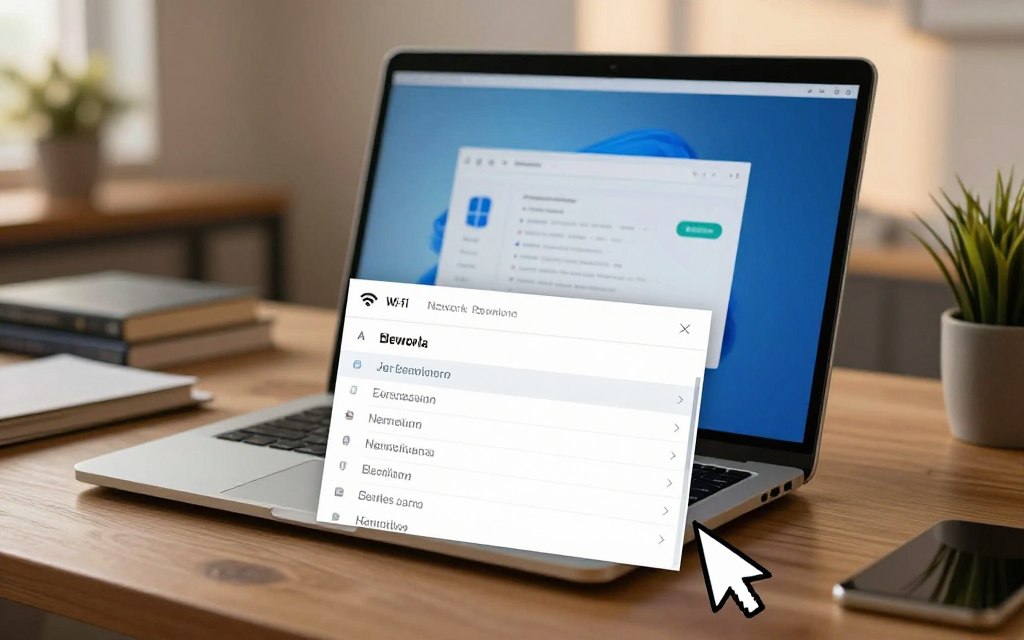
The taskbar network icon is the quickest starting point when your computer is near its router. Choose the network name, enter its password, and connect to the internet. Both Windows versions let you view nearby Wi-Fi networks from the taskbar.
Use the same Wi-Fi network for both computers when you want them on one local network. They do not need a direct wireless link between them. A supported camera can also scan a Wi-Fi QR code containing the network name and password.
Connect on Windows 11
Select the taskbar network, sound, or battery area to open Quick Settings, then select the Wi-Fi arrow. Choose the network name, select Connect, and enter its password. If the network is missing, refresh the list by turning Wi-Fi off and on, or move closer to the router.
You can also open Settings, select Network & internet, then Wi-Fi. To find a saved password, open the connected network’s properties and look for the password display option. Menu labels can vary by Windows version and device.
Connect on Windows 10
Select the network icon on the taskbar and choose the network name. Enter the password and select Connect. If the expected name does not appear, turn Wi-Fi off and on, then refresh the list or check the router’s signal.
For how to connect in network computer Windows 10, use the taskbar network icon, select the right network, and enter its password. Settings also lists Wi-Fi networks under Network & Internet. To show a saved password, open Control Panel’s Network and Sharing Center, select the Wi-Fi connection, then Wireless Properties and Security.
- Open the taskbar Wi-Fi controls.
- Select the correct network name.
- Enter the password and choose Connect.
- Check the connection status and open a website.
For how to connect two computers wirelessly, join each computer to the same router and local network. That is also how to connect internet to computer wireless: select the network, enter its password, and confirm the connection. If Wi-Fi is unavailable, use the Ethernet instructions; if internet works but shared files do not, check the sharing setup.
How Do You Connect a Computer With Ethernet?
A desktop computer with an Ethernet port can connect to a nearby router with a network cable. Plugging in the cable usually gives the computer a wired connection without Wi-Fi. The router’s LAN port is the correct place for the computer.
In a typical home setup, the modem connects to the router’s internet port, and computers connect to the router’s LAN ports. A laptop without an Ethernet port can use a compatible USB-to-Ethernet adapter. Connecting a laptop uses the same router-and-cable process.
Use these steps to connect a computer to the network:
- Check for an Ethernet port or a compatible USB-to-Ethernet adapter.
- Connect a network cable from the computer to a router LAN port.
- Allow the computer to obtain its network settings automatically.
- Check Windows network status to confirm the connection.
DHCP lets the router assign network settings automatically when Windows is set to obtain an IP address automatically. This is the usual setting on home computers. If the computer does not connect, check that the cable fits firmly and the router port is active.
People asking how to connect in network computer to laptop can use this same wired setup if both devices have Ethernet ports. For how to connect two computers using LAN cable in Windows 10, connect each computer to a router rather than simply plugging them into each other. A direct cable between computers may need extra configuration.
If both computers need access to the same files, set up local sharing after they join the network.
How Do You Connect Two Computers on the Same Network?
For example, one computer may hold a folder of photos that a second computer needs to open. Put both computers on the same local network, then share that folder from the computer holding it. Internet access alone does not grant access to files.
The host computer must authorize the account that opens its shared folder. Network discovery helps devices find one another, but it does not grant permission to view files. You do not need to create administrator accounts just to share a folder.
Check that both computers are on the same local network
For how to connect two computers on the same network Windows 11, check the Wi-Fi name or Ethernet connection on each computer. Both devices should use the same local network, not a guest network or separate router segment. Separate segments may block discovery even when both computers have internet access.
A matching workgroup name alone does not establish access to files. Each computer also needs to be reachable on the local network. If you are unsure which device name to look for, use these steps to find a computer name on a network.
Share a folder and open it from the other computer
Choose a specific folder on the host computer, then open its Properties and sharing options. Share only the folder the other computer needs. In Windows, turn on network discovery and file sharing for a trusted private network when prompted.
On the second computer, open File Explorer and look under Network for the host computer’s name. Select the computer, then open the shared folder. This is a practical example of how to connect in network computer to PC through a shared folder, rather than linking the devices directly.
If the host does not appear, use its computer name in File Explorer’s network path. Windows may ask for credentials for an account authorized on the host. Enter that account’s details; do not reuse one password across devices just to make sharing work.
For how to connect two computers through network sharing, confirm both devices are on the same local network, share a folder, and open it from the other computer. If you cannot find the host or open its share, check visibility, permissions, and credentials.
How Can You Fix Common Network Connection Problems?
Start by separating a computer that cannot reach the internet from one that cannot see another computer. Those problems point to different parts of the network. Check internet access first, then test local file sharing.
An internet connection can work while local file sharing fails. A password issue, disabled sharing setting, and cable fault each need a different fix. Checking the right part first can keep you from changing unrelated settings.
Check internet access separately from local file sharing
Check whether another device can reach the internet through the same router. If other devices work, check the computer’s Wi-Fi or Ethernet status and confirm it joined the right network. A wrong network password can stop a Wi-Fi connection before file sharing matters.
If the whole home network is offline, restart the modem and router. Wait for their connection lights to settle, then test again. A restart can restore a temporary connection, but it will not fix a damaged cable or wrong account credentials.
Check visibility, credentials, and the physical link
For a wired connection, check both ends of the cable and try another router port. Confirm both computers use the same local network, since guest networks or separate router segments may block discovery. A computer name can help identify the host when several devices appear.
Check that network discovery and file sharing are enabled on a trusted network. Then confirm the shared folder allows the account you are using. Re-enter credentials for an account authorized on the host, rather than changing unrelated passwords or creating an administrator account.
If Windows cannot find the host computer, its name may help you spot a typo or identify the correct device. You can also check the connection status before changing sharing options. A network address can help distinguish computers, but access still depends on the host’s permissions.
These targeted checks can separate internet issues from local sharing failures. Once the connection works, choose when device discovery and sharing should stay enabled based on the network’s security.
How Do You Keep a Network Safe While Sharing Files?
File sharing belongs on a trusted local network, not an unfamiliar public one. Windows uses a network profile to control local visibility and sharing behavior. Public profiles limit discovery and file-sharing connections.
Share only the folders that need to be accessible, and use a strong, unique account password. Leave network discovery off on public Wi-Fi. A guest network may isolate devices from one another, which can block sharing even when internet access works.
Keep file sharing on trusted networks, and leave discovery off on public Wi-Fi.
| Network context | Discovery and sharing | Practical choice |
|---|---|---|
| Trusted home network | Can be enabled for needed devices | Share only selected folders |
| Public Wi-Fi | Keep discovery and sharing off | Use a public network profile |
| Guest network | May block device discovery | Use the main network only when trusted |
Windows also supports random hardware addresses for Wi-Fi networks. A MAC address is a unique hardware address that can be exposed while a device scans for Wi-Fi networks. You can set random hardware addresses for all networks or for an individual saved network.
The random address setting appears only when the Wi-Fi hardware supports it. Keep sharing limited to the devices and folders you intend to expose, then connect the computer and test internet access before creating a shared folder.
Conclusion
Most home setups can start by joining each device to the same router. Wi-Fi offers freedom to move, while Ethernet gives a direct cable connection. File sharing also requires both computers to be reachable and authorized on the same local network.
You can keep sharing limited to the folders and devices that need access. First connect the computer by Wi-Fi or Ethernet, then test internet access before setting up any shared folder.


 By
By
 By
By
 By
By